Preparing for AerynOS installation
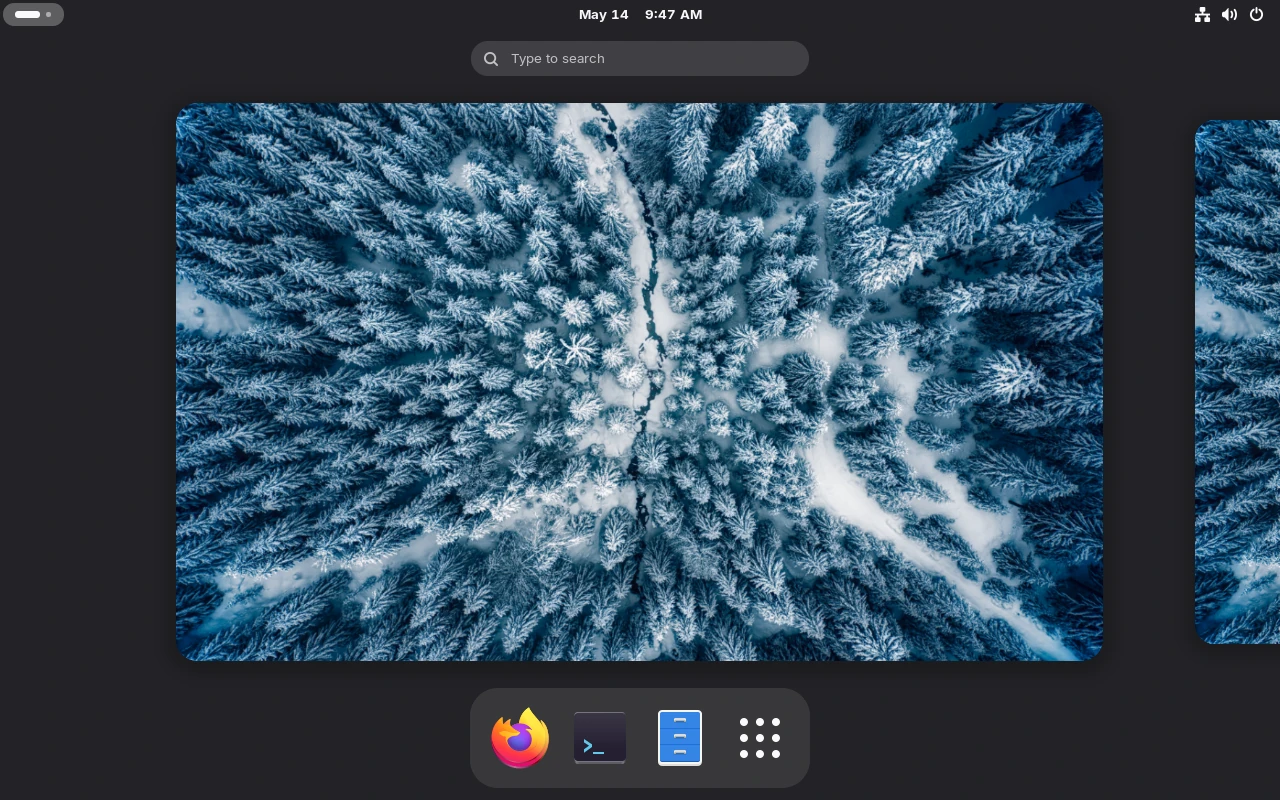
How to be ready to install AerynOS, from downloading the image to preparing the installation media In the previous article of this series, we chose AerynOS as a new operating system. Now, we will see how to prepare its installation. AerynOS documentation contains everything needed to properly install, configure and use it daily. All basics are already covered and contributors improve it day after day. In order to make sure installing AerynOS is worth it, we first need to ensure the hardware we have is able to run it. Hardware requirements are pretty low so we'll test AerynOS for real with the Live environment. Preparing the installation media can be summarized in two steps: The installation image is an AerynOS Live environment. There are two ways to download it, either from the website or from a torrent. Both are accessible from the Download page: https://aerynos.com/download/. Torrent can be preferred to limit the load on the CDN (Content Delivery Network). AerynOS provides a checksum. It must be verified to make sure the image is complete and has not been altered during the download. Always make sure you download the checksum file from the CDN (even if AerynOS may never make it available through other means). You have to trust the CDN for now, as AerynOS doesn't sign its image file yet. It is for now the only way you have to make sure the image file you downloaded has not been tampered with. If you were retrieving the checksum using any other way (in particular a torrent), someone malevolent could distribute both a corrupted image and its checksum and you would have no way to know that it is not the official AerynOS image. AerynOS will probably sign its image file once more mature to guarantee the image we downloaded is the one that has been built. Just pick up the last Once both the image and the checksum files are downloaded, you can verify the checksum before moving forward: In case the image doesn't match its checksum, you'll have a message as follow: Now that the image has been downloaded and successfully verified, let's create a bootable USB stick. First, you need to know the device name of your USB stick. Usually, using the The USB stick I use is a 60G SanDisk Ultra Fit, so I know its device name is If it is impossible to identify the USB stick thanks to this command, it should be possible to use Once plugged in, you should retrieve messages similar to the following ones: We can extract the device name With the device name, we can issue the following command to copy the image to the USB stick: Don't forget Once the copy is finished, we can check the USB stick has been properly prepared by using the BIOS/UEFI is what is executed first when we push the power button of the computer. BIOS1 is older, UEFI2 is newer. UEFI brings many improvements both from a functionality and security perspective so I would tend to prefer it. Anyway, AerynOS only supports UEFI so we won't have the choice here. BIOS/UEFI is usually shipped with the motherboard by the manufacturer and might not really be privacy compliant. FOSS alternatives exist though. If you are interested, you can look at coreboot and libreboot. Some privacy-respectful manufacturers even ship them with their computers3. Unfortunately, my laptop has a proprietary ASUS UEFI firmware and is not supported by libreboot or alternatives out-of-the-box. I won't take action on having it supported now. It would take me far too much time because I would have to strongly grow my competencies on this topic. Maybe later. How to access the BIOS/UEFI can vary from one computer to another as it depends on the motherboard manufacturer. Usually, it consists of repeatedly hitting one of the following keys as soon as the computer starts: At this stage, the only piece of advice I can give regarding security is to set up a strong password for your BIOS/UEFI. Accessing the BIOS/UEFI allows an attacker to modify boot parameters (including boot order, secure boot, ...). Locking it is the very first step in an attempt to protect your computer against someone having physical access to it (e.g. evil maid attacks4). It will also make the computer harder to reuse in case of theft as it may slow down, but not completely prevent, the reinstallation of a new system. Even if today you may need to contact the manufacturer's support most of the time, older devices can have their BIOS password reset by acting on the motherboard (removing the battery, short-circuiting some pins). Ensure you have a way to remember your BIOS/UEFI password for sure even if it means writing it down and storing it somewhere safe. In order to set up a password for the BIOS/UEFI, we first need to enter the BIOS/UEFI menu. Let's just restart our computer and access it as explained previously. Each BIOS/UEFI menu is different but setting up a password should be possible from the Last but not least, be careful with the keymap which may default to QWERTY. It might not be a big deal when typing your password to log in as you may just need to hit the same keys as when you set it up. Nevertheless, this should be taken into account when writing it down somewhere else. As soon as you set it up, save the changes, restart your computer and try to enter the BIOS/UEFI menu. You may be prompted for the password you just set up. Make sure it works as expected before moving forward (you won't be able to if not the case anyway...). You may now be back to the BIOS/UEFI menu. As stated in the requirements, AerynOS supports neither BIOS nor UEFI with CSM mode so we need to make sure it is disabled. CSM stands for AerynOS Live won't boot if it detects that you're not using pure UEFI and you will get the following screen: One more step toward fully protecting the computer would have been to enable UEFI Secure Boot. This allows a chain of trust to ensure the boot sequence has not been tampered with. Unfortunately, AerynOS doesn't support Secure Boot yet at the time of writing5. Anyway, it is usually better to activate it later to not overcomplicate the first installation. I'll add a dedicated article to this series if I find a way to set it up properly. The last step is to configure the boot order. As expected, the boot order decides in which order BIOS/UEFI will search disks or anything else (network...) for an operating system to boot on. You should always have only configured the disk where you have your operating system on. This will prevent any other operating system from being booted before yours. This option should be available in a Once your BIOS/UEFI is properly configured, be sure to save changes. This will restart your computer. Firstly, plug the USB stick into your computer. Nevertheless, as we ensured the boot order is limited to the computer's drive, it will not boot from the USB stick by default. Most of the BIOS/UEFI have a one-time boot menu allowing you to select where to boot from. We just need to reach the BIOS/UEFI as previously explained and manually select to boot from the USB stick. If everything works as expected, you may now see the AerynOS Live desktop environment (GNOME): You can now play a bit with the Live version of AerynOS to see if it fits your needs. Beware that you have limited storage (all is in RAM for a live environment). Before moving forward, configure your network (Ethernet or Wi-Fi) and ensure you can connect to the Internet. For now, the AerynOS installer requires Internet connectivity as it will download all the packages you'll require. You can look at https://en.wikipedia.org/wiki/Evil_maid_attack for a description of the attack and at http://theinvisiblethings.blogspot.com/2009/10/evil-maid-goes-after-truecrypt.html for a practical implementation example ↩This article is the second of the series: A not-so-badly secure OS config
Preparation of the installation media
Download the installation image
AerynOS-<version>-<desktop>-<architecture>.iso image file with the associated checksum file (same name with .sha256sum added). At the time of writing, it is:sha256sum -c "AerynOS-2026.05.2-GNOME-live-x86_64.iso.sha256sum"
#> AerynOS-2026.05.2-GNOME-live-x86_64.iso: OKsha256sum -c "AerynOS-2026.05.2-GNOME-live-x86_64.iso.sha256sum"
#> AerynOS-2026.05.2-GNOME-live-x86_64.iso: FAILED
#> sha256sum: WARNING: 1 computed checksum did NOT match Copy the installation image to a USB stick
lsblk command is enough to identify your USB stick with the following:lsblk -o name,vendor,model,size,type,tran,label,mountpoint
#> NAME VENDOR MODEL SIZE TYPE TRAN LABEL MOUNTPOINT
#> sdX ATA Micron_1100_MTFDDAV256TBN 238,5G disk sata
#> ├─sdX1 554M part
#> ├─sdX2 4G part
#> └─sdX3 234G part
#> └─luks-redacted-0000-0000-0000-000000000000 234G crypt /
#> sdY SanDisk Ultra Fit 57,3G disk usb
#> └─sdY1 57,3G part
#> zram0 7,6G disk zram0 [SWAP]sdY. Beware that your output will differ and your device name may be different as well.dmesg by:sudo dmesg --follow-new to display all the upcoming messagesudo dmesg --follow-new
#> [<timestamp>] usb 2-1: new SuperSpeed USB device number 8 using xhci_hcd
#> [<timestamp>] usb 2-1: New USB device found, idVendor=0781, idProduct=5583, bcdDevice= 1.00
#> [<timestamp>] usb 2-1: New USB device strings: Mfr=1, Product=2, SerialNumber=3
#> [<timestamp>] usb 2-1: Product: Ultra Fit
#> [<timestamp>] usb 2-1: Manufacturer: SanDisk
#> [<timestamp>] usb 2-1: SerialNumber: XXXXXXXXXXXXXXXXXXXXXXXXXXXXXXXXXXXXXXXXXXXXXXXXXXXXXXXXXXXXXXXXXXXXXXXXXXXXXXXXXXXXXXXXXXXXXXXXXXXXXXXXXXXXXXXXXXXXXXXX
#> [<timestamp>] usb-storage 2-1:1.0: USB Mass Storage device detected
#> [<timestamp>] scsi host1: usb-storage 2-1:1.0
#> [<timestamp>] scsi 1:0:0:0: Direct-Access SanDisk Ultra Fit 1.00 PQ: 0 ANSI: 6
#> [<timestamp>] sd 1:0:0:0: [sdY] 120176640 512-byte logical blocks: (61.5 GB/57.3 GiB)
#> [<timestamp>] sd 1:0:0:0: [sdY] Write Protect is off
#> [<timestamp>] sd 1:0:0:0: [sdY] Mode Sense: 43 00 00 00
#> [<timestamp>] sd 1:0:0:0: [sdY] Write cache: disabled, read cache: enabled, doesn't support DPO or FUA
#> [<timestamp>] sdY: sdY1
#> [<timestamp>] sd 1:0:0:0: [sdY] Attached SCSI removable disksdY from the messages.sudo dd if=/path/to/AerynOS-image.iso of=/dev/sdY bs=4M status=progress oflag=direct
#> <copy progress, wait until the command completes>
sudo syncsudo sync to make sure the last bits are properly written to the USB stick (flush whatever would remain in a buffer).lsblk command again:lsblk -o name,vendor,model,size,type,tran,label,mountpoint
#> NAME VENDOR MODEL SIZE TYPE TRAN LABEL MOUNTPOINT
#> sdX ATA Micron_1100_MTFDDAV256TBN 238,5G disk sata
#> ├─sdX1 554M part
#> ├─sdX2 4G part
#> └─sdX3 234G part
#> └─luks-redacted-0000-0000-0000-000000000000 234G crypt /
#> sdY SanDisk Ultra Fit 57,3G disk usb AERYNOSLIVE
#> ├─sdY1 2,4G part AERYNOSLIVE
#> └─sdY2 252M part EFIBOOTISO
#> zram0 7,6G disk zram0 [SWAP] Configure the BIOS/UEFI
F1, F2, F8, F10, Suppr or Esc. Just search for how to reach BIOS for your hardware. There may be many places on the Internet explaining how to do it. Anyway, if you reach your usual operating system, it means you failed. Just restart and try again.
You may not use it every day so it is pretty easy to forget about it.
Nevertheless, rest assured you'll need it someday (e.g. reinstalling a new operating system).Security tab (possibly after switching to the advanced mode if any). There may be different passwords for different privileges (administrator, user). What we are looking for here is to set up the password for the administrator. I would advise you to keep other passwords disabled if any. Only change them if disabling them is impossible. Be sure default passwords will be the first thing an attacker will try.Compatibility Support Module. If enabled, UEFI will kind of emulate BIOS for compatibility with older systems. CSM is sometimes called Legacy Mode. Just find the associated option in the BIOS and make sure you're using UEFI without CSM.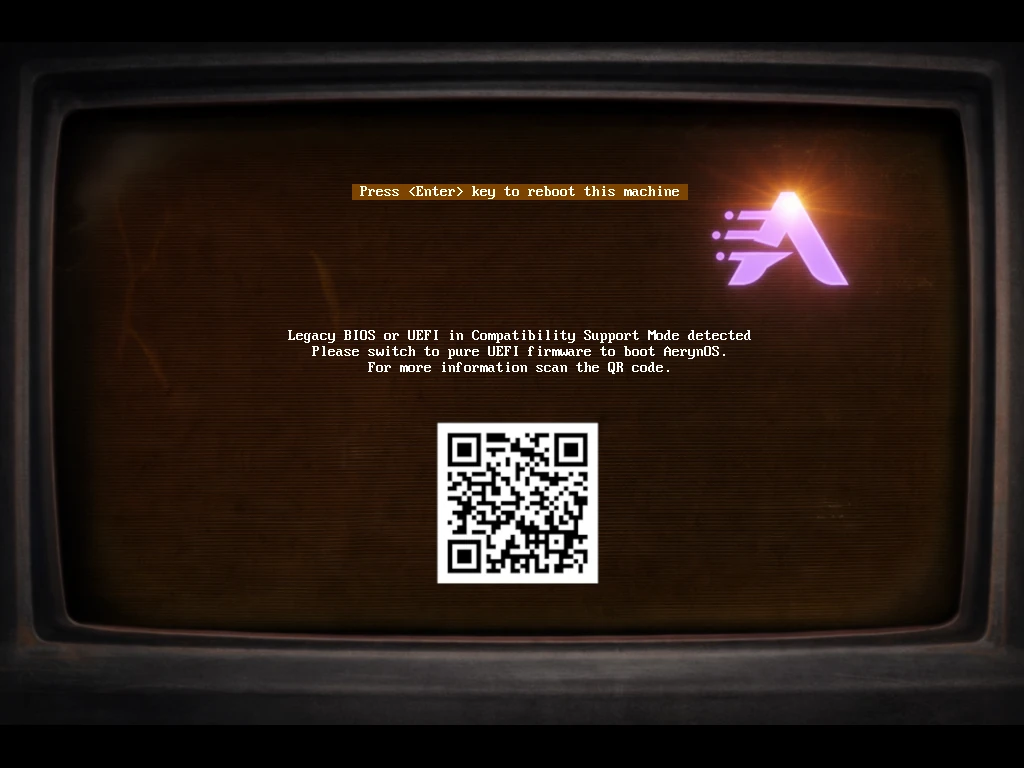
Boot tab. Boot from the USB stick